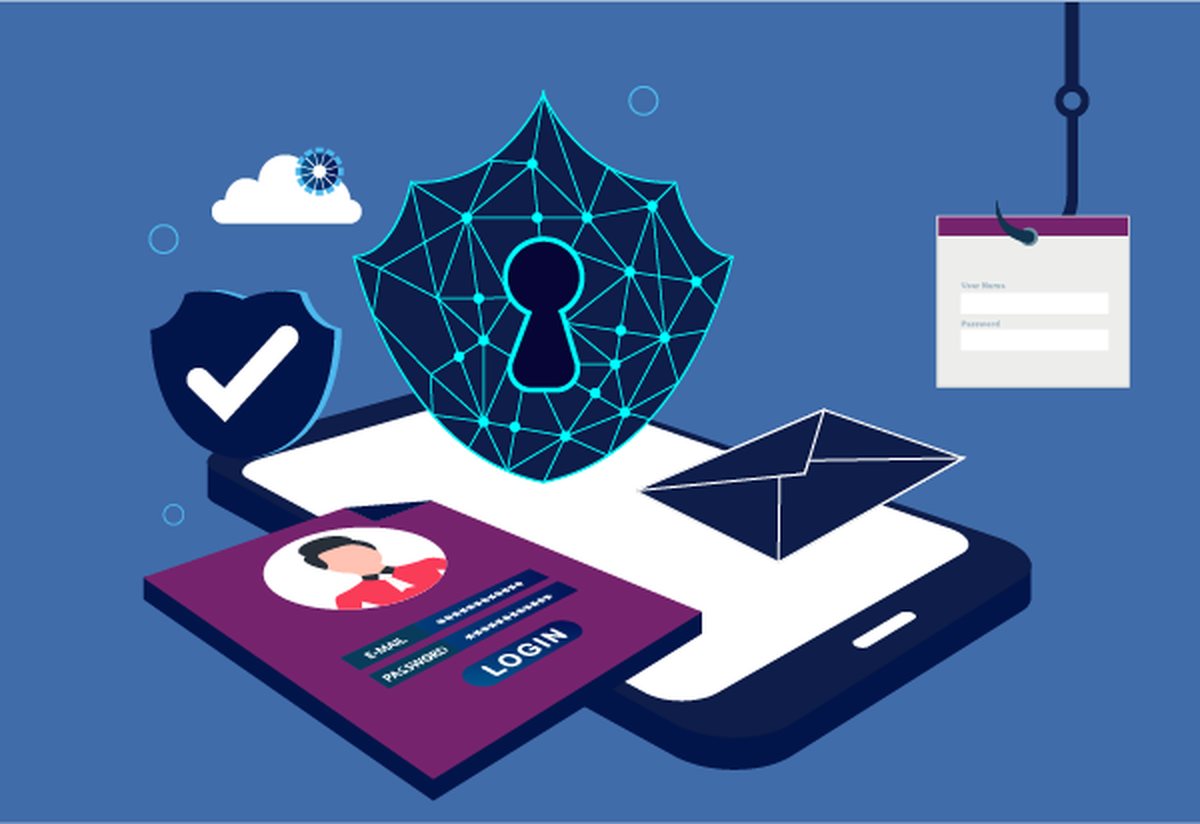
Passkeys are the successor to passwords: instead of typing a secret, you approve sign-in with your fingerprint, face, or device PIN. This tutorial sets them up on the accounts that matter most.
Step by Step
- Start with your main email account — it can reset every other password you own, so it gets the passkey first.
- Open the account's security settings and look for 'Passkeys' or 'Security keys' — Google, Microsoft and Apple all place it there.
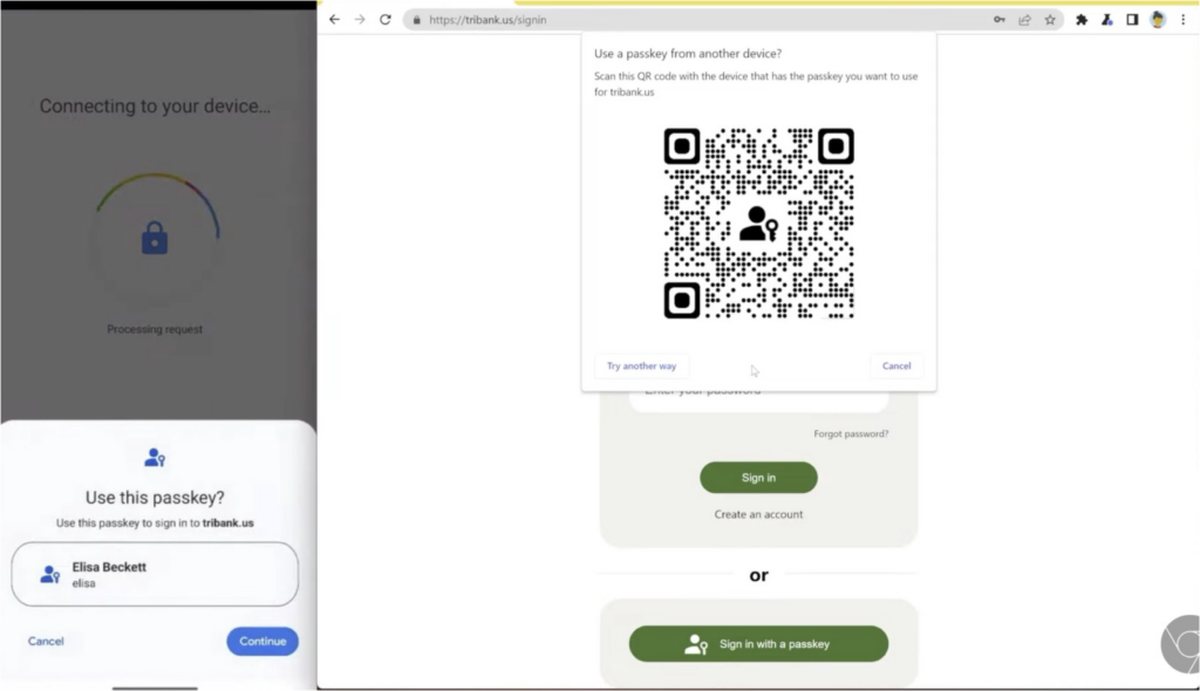
- Choose 'Create a passkey' and confirm with your fingerprint, face scan, or device PIN when prompted.
- Sign out, then sign back in choosing 'Use a passkey' to prove the flow works before you rely on it.
- Repeat for your banking, shopping and social accounts — most large services now offer the same option.
- Keep one backup method (authenticator app or recovery codes) in case you lose the device holding your passkeys.
With passkeys on your main accounts, the most common account-takeover tricks — phishing pages and stolen password lists — simply stop working.
Enjoying TCBuzz? Get the Briefing.
The five most important tech stories, one tutorial and one fact — in your inbox every weekday morning, free.
You're on the list — please check your inbox to confirm your subscription.
No spam · Unsubscribe in one click · See our Privacy Policy